
Facilitator's Playbook
You are part of an exciting new initiative to deliver INL PREP online. This guide gives you clear direction as well as tips and tricks before facilitating your session. Please feel free to reach out to us for support and a trial run.
View Dashboard Enter Classroom
PREP TIME

20 minutes
CLASS TIME

90 minutes
DIFFICULTY

Medium
DOWNLOAD

Grab it!
Be Prepared
- Make sure your web camera and microphone are active and working properly. The first time you use Whereby, it will request permission to turn on your mic and cam.
- All participants and adjuncts can go directly to https://learn.whereby.com/prep to join the virtual session without logging in. You may want to sign up to upload your picture although uploading your picture is not mandatory.
- To create a free user account and upload your picture, go to: https://whereby.com/user/signup. You can also set up a free room to see what it looks like and practice using it.
Practice Screen-Sharing
- We recommend that you practice screen-sharing before you present, especially if you will be sharing more than the INL PREP PowerPoint slides. INL PREP coordinators will schedule a meeting with you before your session.
- Recommended Browser: CHROME
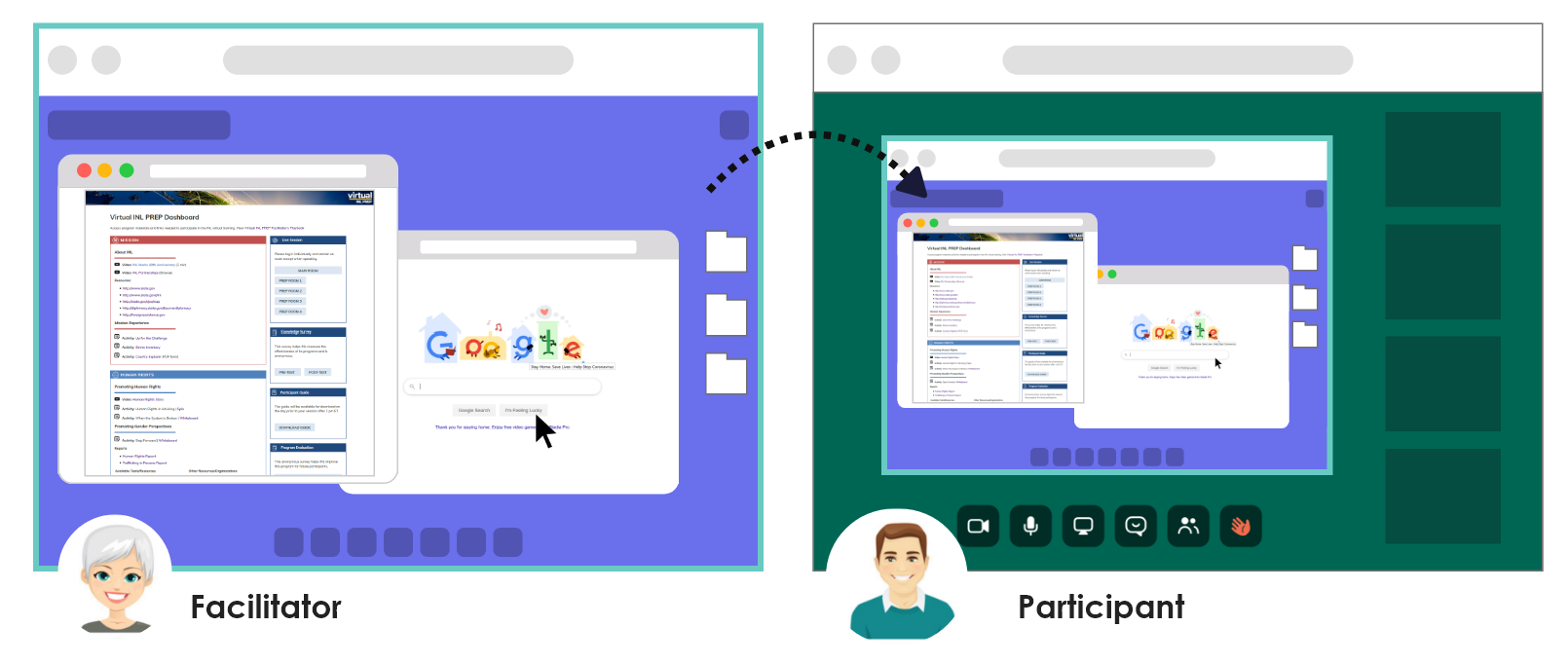
- Note: Whereby is a secure, GDPR compliant, browser-based video conference tool that is easy to use and launch without downloading anything onto your computer. However, it comes with some pitfalls if you are not accustomed to the setup.
- The best experience is to use a second monitor so you can see both the participants and your presentation on the screen.
- If you do not have a second monitor, you can use an external device like a smart phone, iPad, or another computer. Log in to that device as a guest user. WARNING: Be sure to turn off the sound and mute yourself on one of the devices; otherwise you will get loud, disruptive feedback.
- If you want to share more than one tab on your browser (e.g. click from the Dashboard to CDC website), you need to share the application window. If you share only the Chrome tab, it will not show users the second tab you clicked.

Pro Tip
Close any extra browsers, applications, and email notifications before you start the session. If you are sharing your entire screen, you may want to temporarily clean off your desktop.
It helps to keep only the files you will be using to present, e.g. INL PREP PowerPoint, a web browser with the PREP Virtual Room, and a web browser tab with INL PREP Dashboard. Bookmark the Dashboard so you can always get back to key links.
Review your Session Materials & Setup
- Check out the Virtual INL PREP Dashboard and make sure anything you need to link to for your session is working properly. If not, please contact us, and we will make sure it is current.
- Rehearse the slides and materials for your session to adapt to the new 90-minute flow.
Set Up your Virtual Training Environment
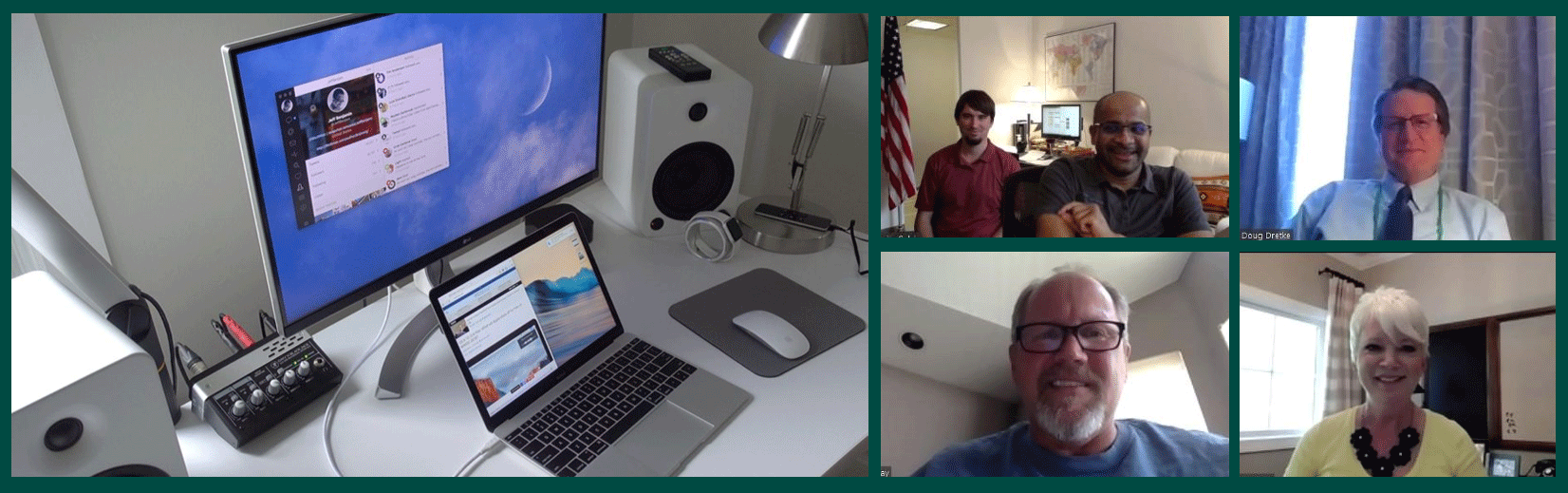
- Set up your environment so it is suitable for professional training:
- Make sure your room is well lit. Use natural light or overhead light to brighten up the room.
- Ensure that your surroundings are clean and uncluttered.
- Plan to wear professional clothing. You want to feel comfortable, but if the camera slips or you need to get up, you want to make sure you are professional from the feet up.
- Do a quick check that your web camera is eye level and on the monitor you plan to use for the training.
Pro Tip
Virtual facilitation is a different dynamic than face-to-face. Veteran trainers will tell you that you need to focus on keeping people engaged. Be animated, change inflection, ask questions, and engage the participants throughout the module.
Facilitating Online: Engage your Audience
- On the day of the training, take about 10 minutes to set up your browser, test your video and audio, and open any web pages you will need.
- NOTE: For security reasons, the room will be locked by default. You and the participants have to Knock before coming into the room.
- Greet the participants as they come into the room! Make sure all participants have turned on their video cameras so that everyone can read each other’s expressions, feel present, and get a true sense of what is being said.
- INL PREP was designed to be dynamic and interactive with the use of video clips, discussions, and hands-on activities. INL PREP Virtual is different from face-to-face training but can be equally engaging.
- Being socially present will encourage the participants to do the same.
- The INL PREP team member will be there to assist you with any glitches or technology issues.
- On the first day, review or remind participants of the functionality of Whereby videoconferencing tools:
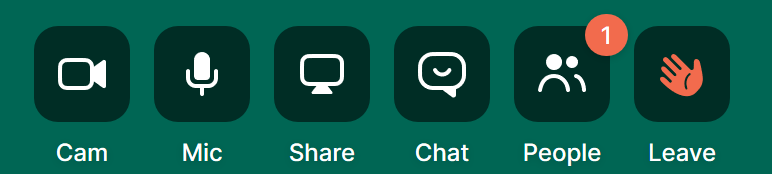
- NOTE: Ask participants to click on the Chat icon so they have the chat window open on the right side of their screens. We will be sharing important URLs in the chat window.
- Participants can also click on the Chat icon to send emojis.
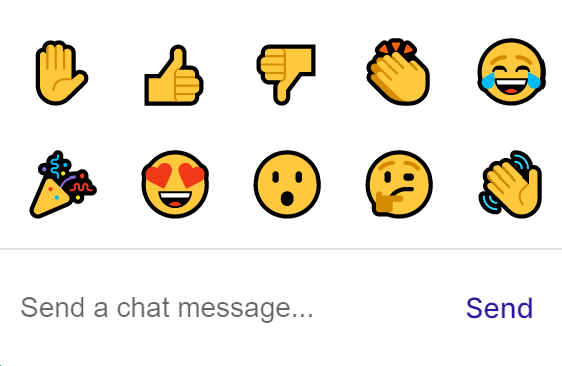
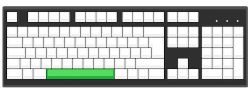
- NOTE: Remind participants to mute the microphone whenever they’re not speaking. The microphone will mute/unmute itself if the user holds down the space bar.
- Make an effort to alleviate any stress associated with this new setting. You may have a variety of participants with different levels of computer knowledge. We have added guardrails so if someone loses their way, they can always get back to the main room.
Share your experience
Thank you for piloting the INL PREP Virtual session. Please let us know how your experience went so we can continue to improve.
Pro Tip
While using Whereby, set your microphone to mute. You can mute/unmute while you hold down the space bar.
Pro Tip
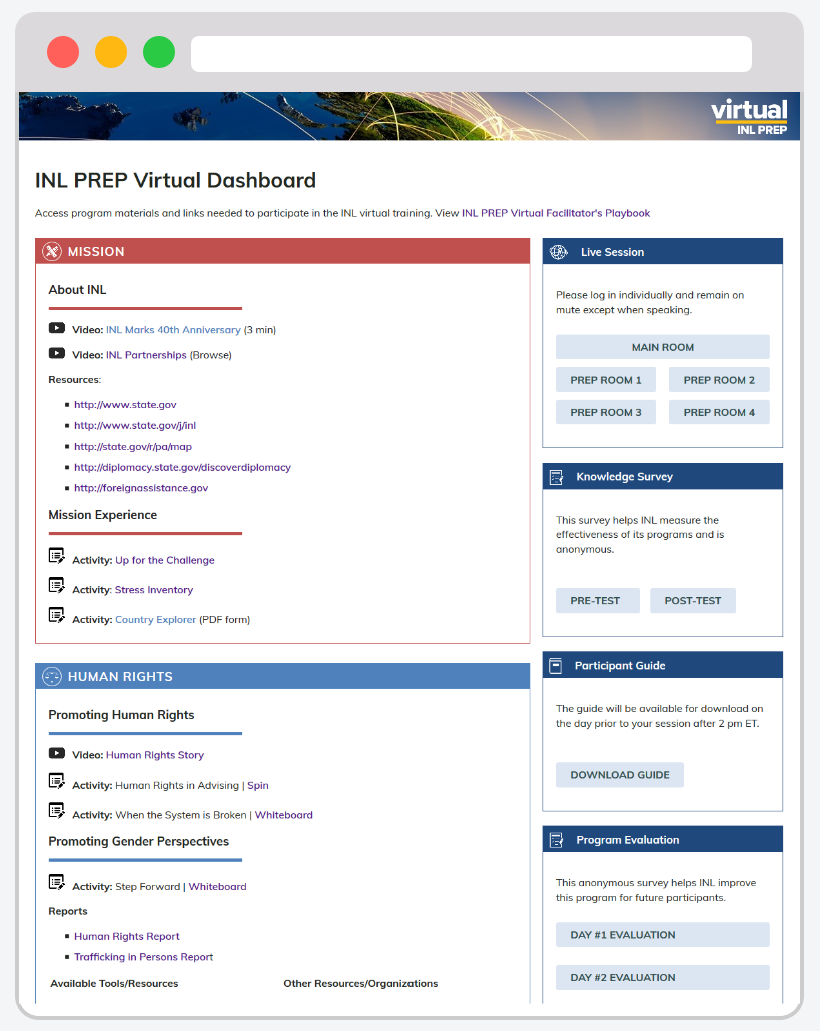
Use the INL PREP Dashboard as the anchor for all activities. Bookmark the URL or set it as a favorite so you can always go back to it.
 Advanced Options
Advanced: Incorporate Interactive Activities
To make the virtual training as interactive and engaging as possible, we added interactive components, like breakout rooms, collaborative whiteboards, and Kahoot! games. You will be notified beforehand if your session requires the use of one of these interactive tools.
Breakout Rooms
- We have set up 5 rooms for the INL training. You do not need to use all the rooms, but some activities require the use of multiple rooms.
- Note: An INL PREP team member will be there to help facilitate moving people into the virtual breakout rooms.
- The INL PREP Dashboard has links to all the rooms. REMIND participants that if anyone gets bumped out of a room, they can go to the dashboard to click back into the main room.
Interactive Whiteboard
- An INL PREP team member will set up whiteboards before your session and provide you with the appropriate link:
- Blank Practice Board
- Preview: Gender Perspectives Activity
- Preview: Advisorship Final Activity
- Before your session, practice with the board to see how it works. Call on the INL PREP team to demonstrate the activity before you facilitate it. See Tipsheet
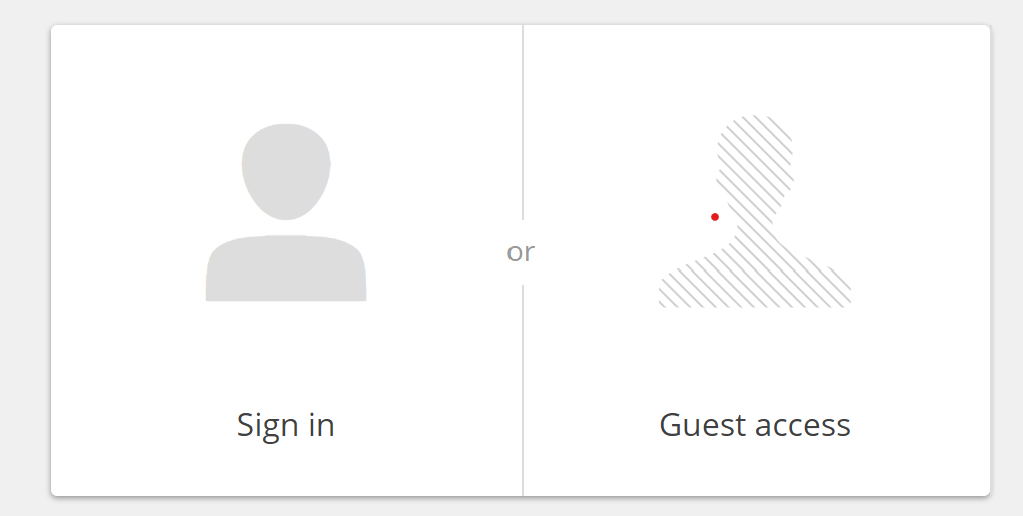
The next screen will ask participants to type in their name:
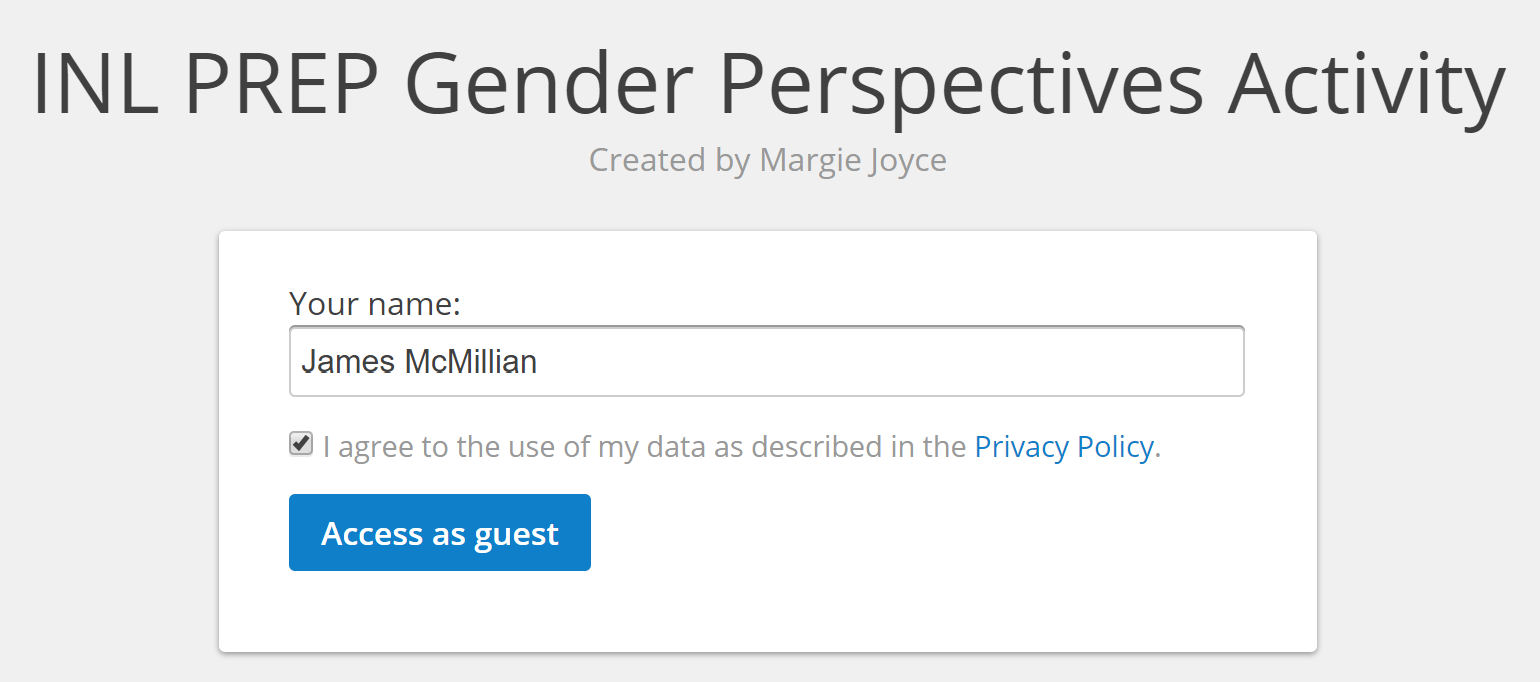
The name will appear when they use and navigate the whiteboard.
Kahoot!
- Kahoot! is an interactive quiz and polling tool that makes online learning more engaging.
- You will be provided a URL for the Kahoot Quiz before you start your session.
- Preview: Travel, Health & Safety Activity
- An INL PREP team member will help launch Kahoot! and share their screen. It will show how participants need to go to www.kahoot.it and enter the Game pin:
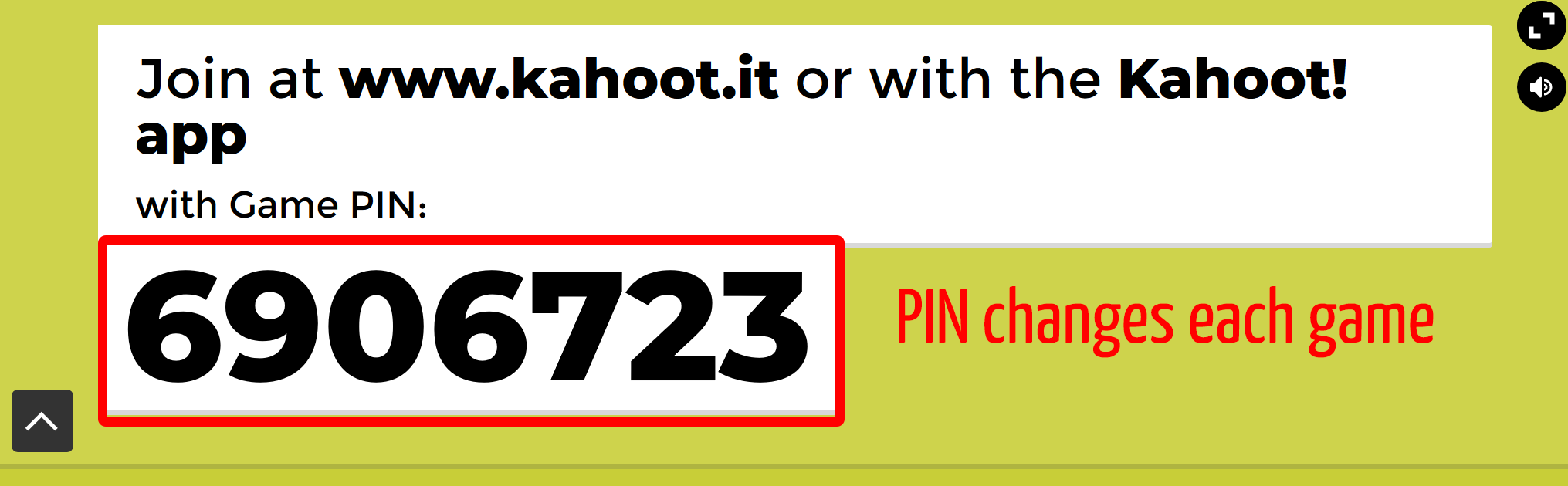
- NOTE: The Game Pin changes with each new game.
- All participants will be asked to have a smart phone or tablet during the session so they can play along and watch the screen for the questions.
Pro Tip
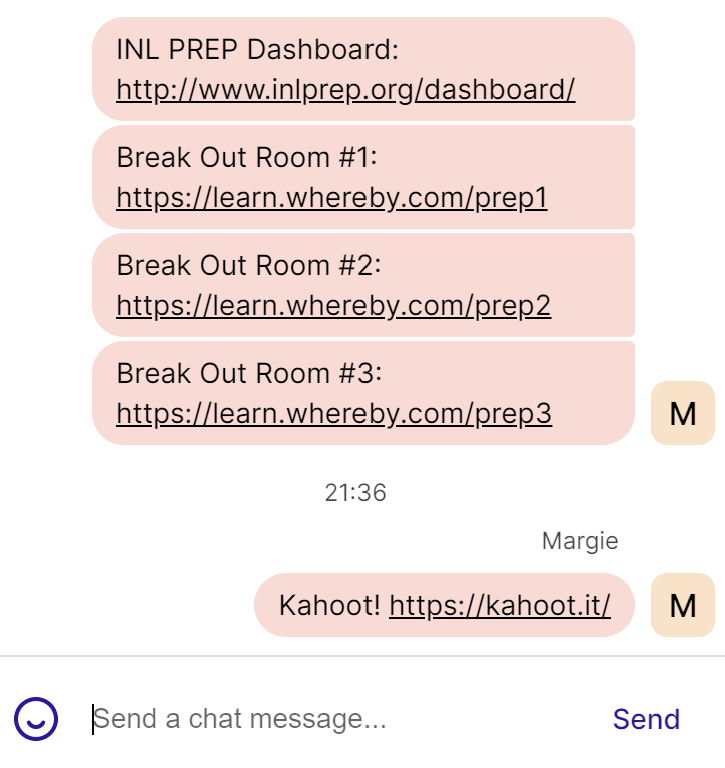
Set up the Chat area with titles for any website URL you want the participants to click on:
Pro Tip
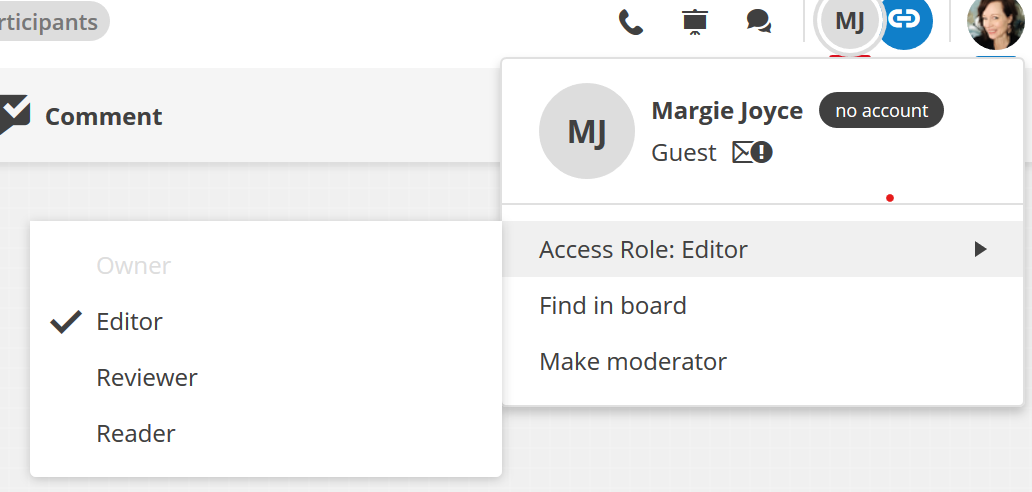
When participants first join the whiteboard, they do not have full access. Change their status from "Reviewer" to "Editor."
Pro Tip
The participants can enter the Game Pin on their mobile device or in a browser: www.kahoot.it